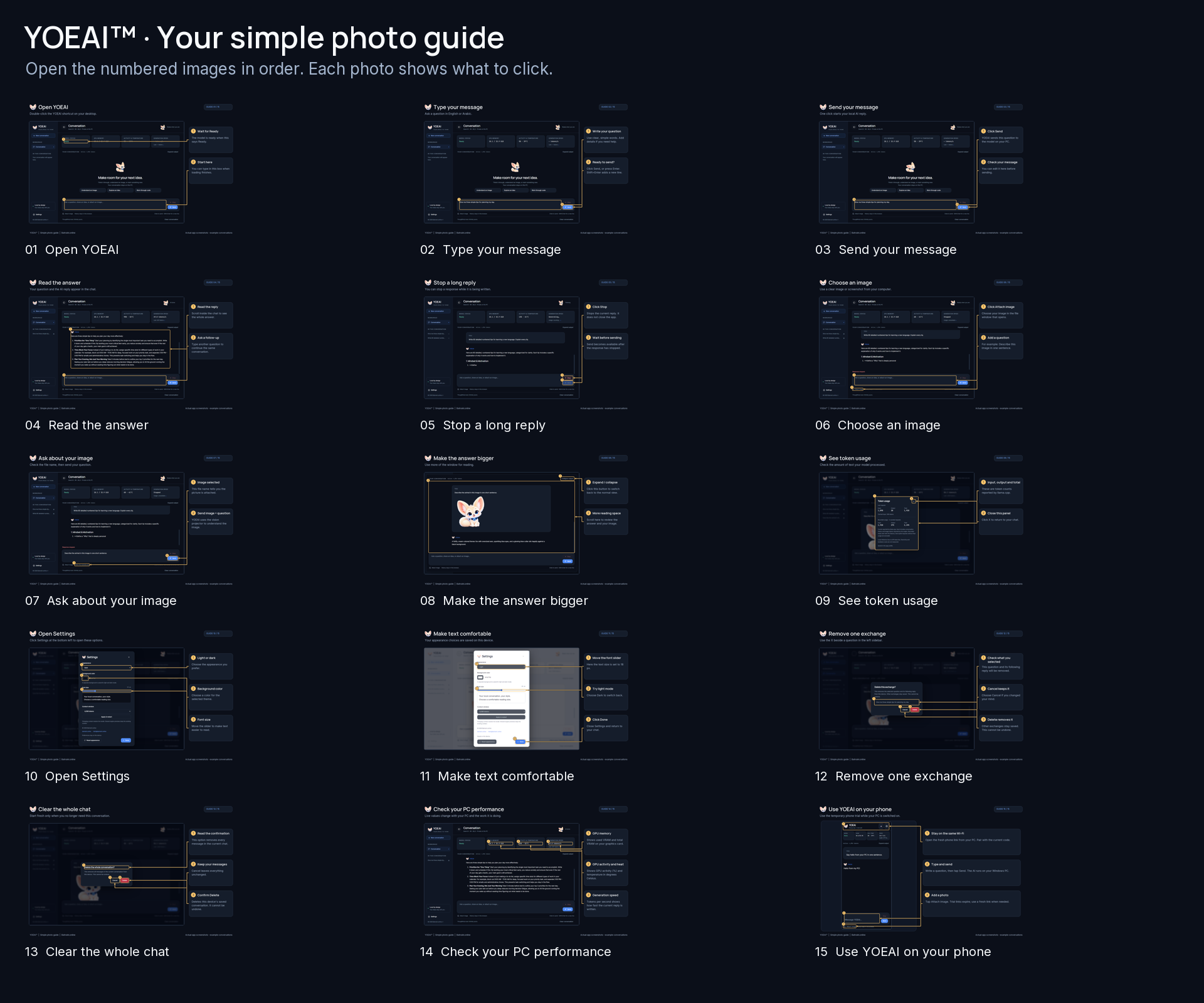
YOEAI™ / STEP BY STEP

Your simple photo guide.

15 real screenshots. Short explanations. Just follow the numbered arrows.

Screenshots show example conversations. GPU readings vary by PC. Phone access shown here is a temporary same-Wi-Fi trial: your PC must stay on, and links and pairing codes expire.

01 Open YOEAI™

Save photo
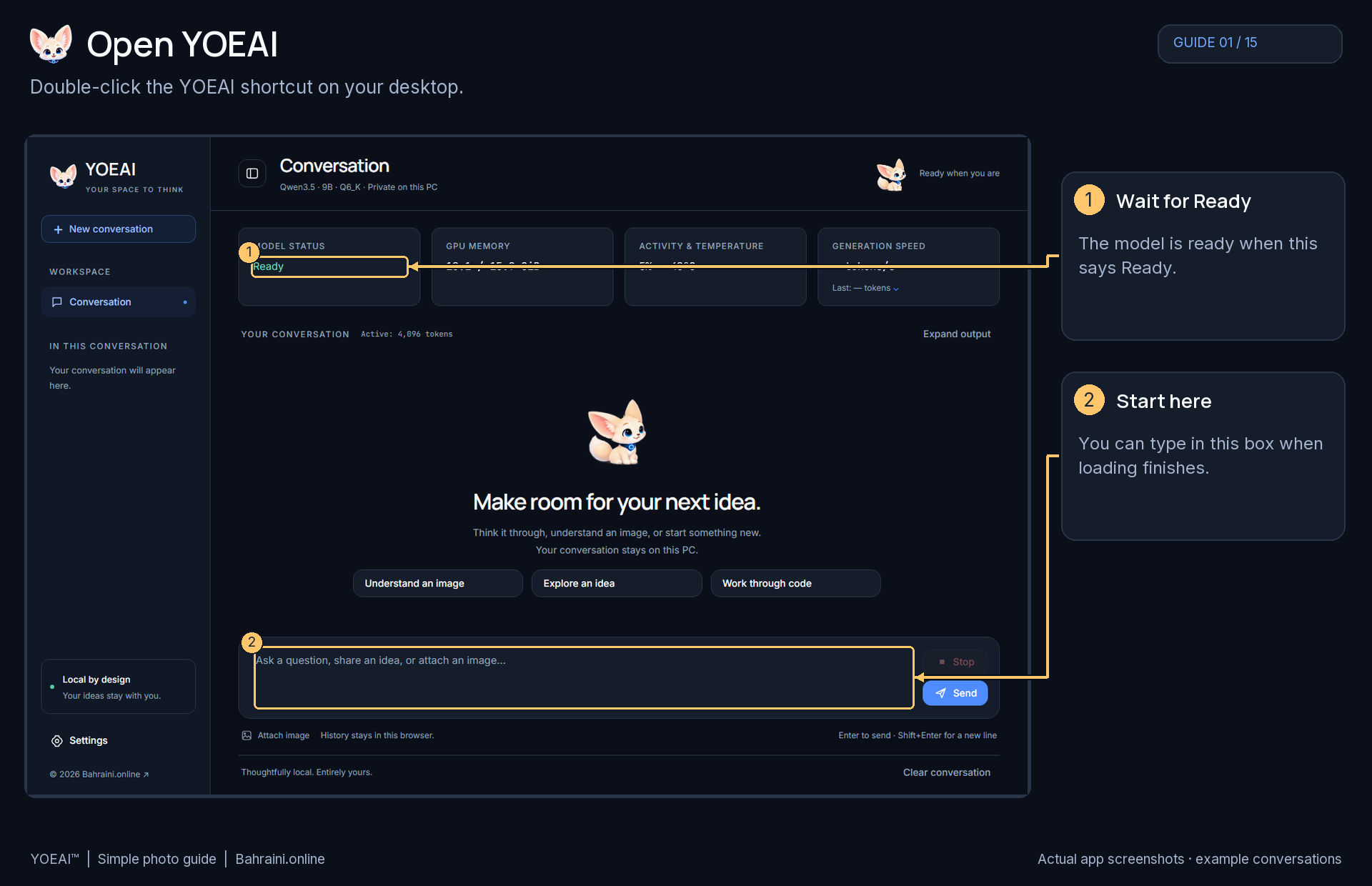
Open YOEAI™ — actual YOEAI™ screenshot with numbered arrows and simple instructions

Tap or click the photo to read it at full size.
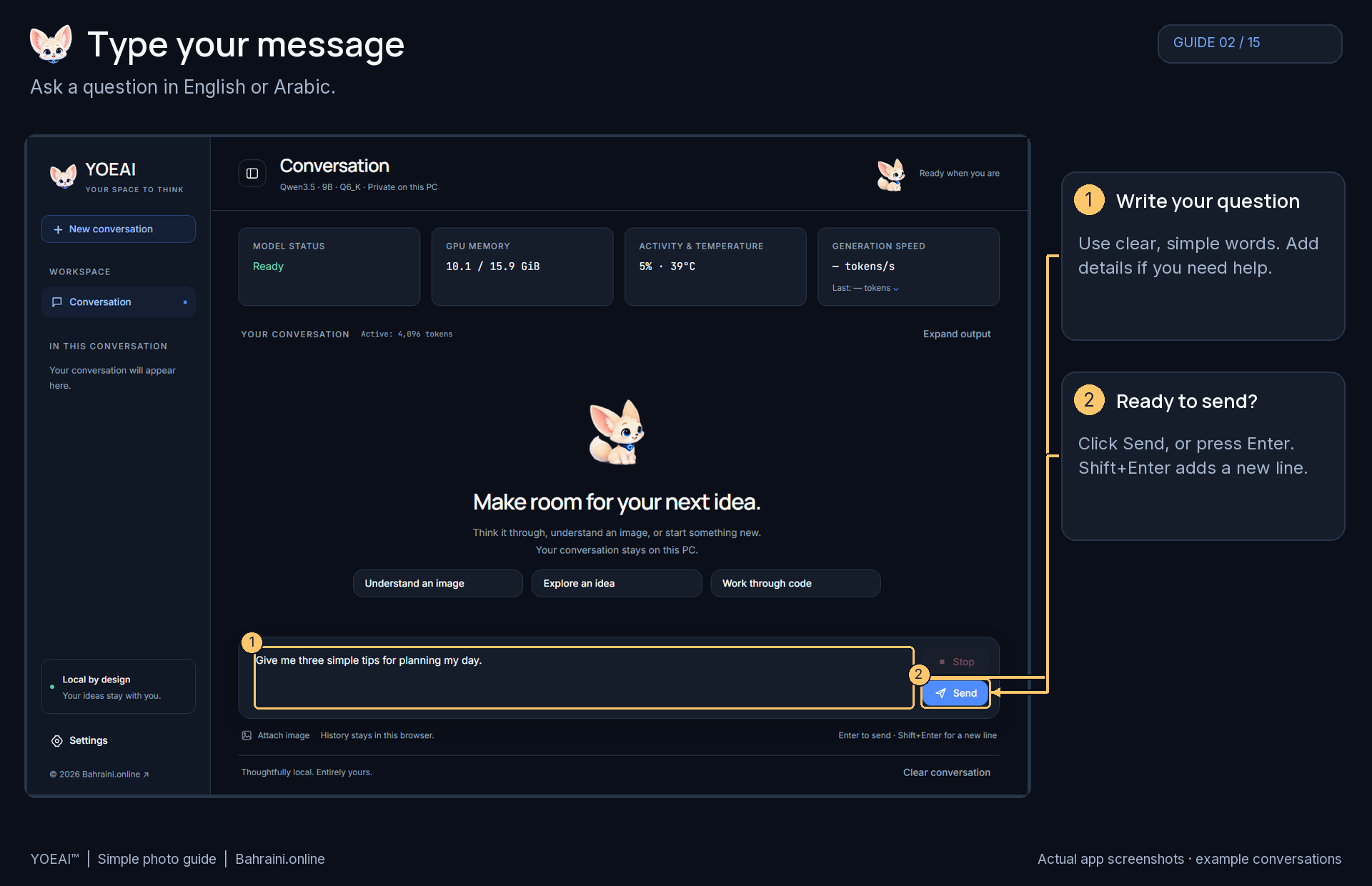
02 Type your message

Save photo
Type your message — actual YOEAI™ screenshot with numbered arrows and simple instructions

Tap or click the photo to read it at full size.
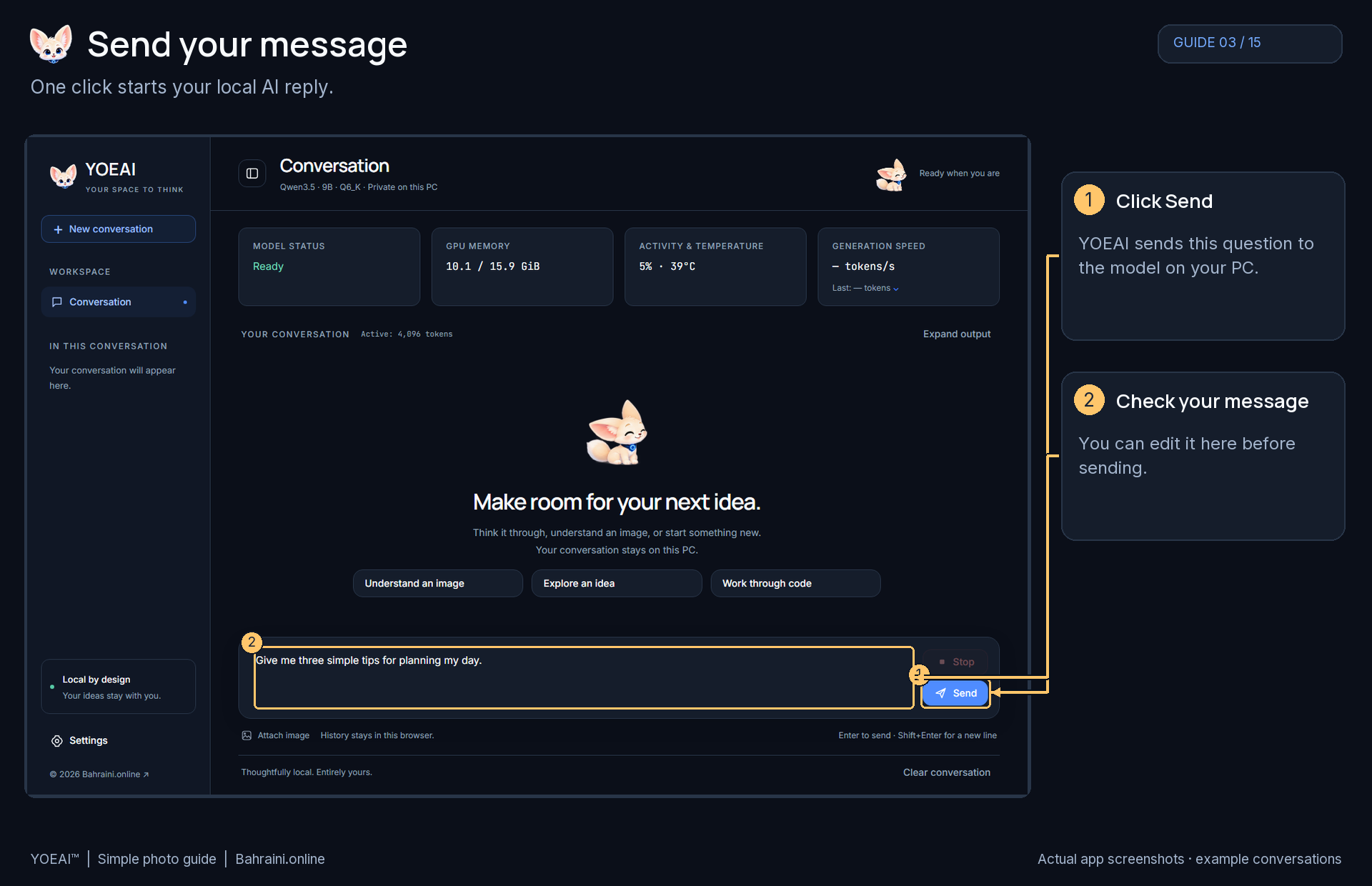
03 Send your message

Save photo
Send your message — actual YOEAI™ screenshot with numbered arrows and simple instructions

Tap or click the photo to read it at full size.
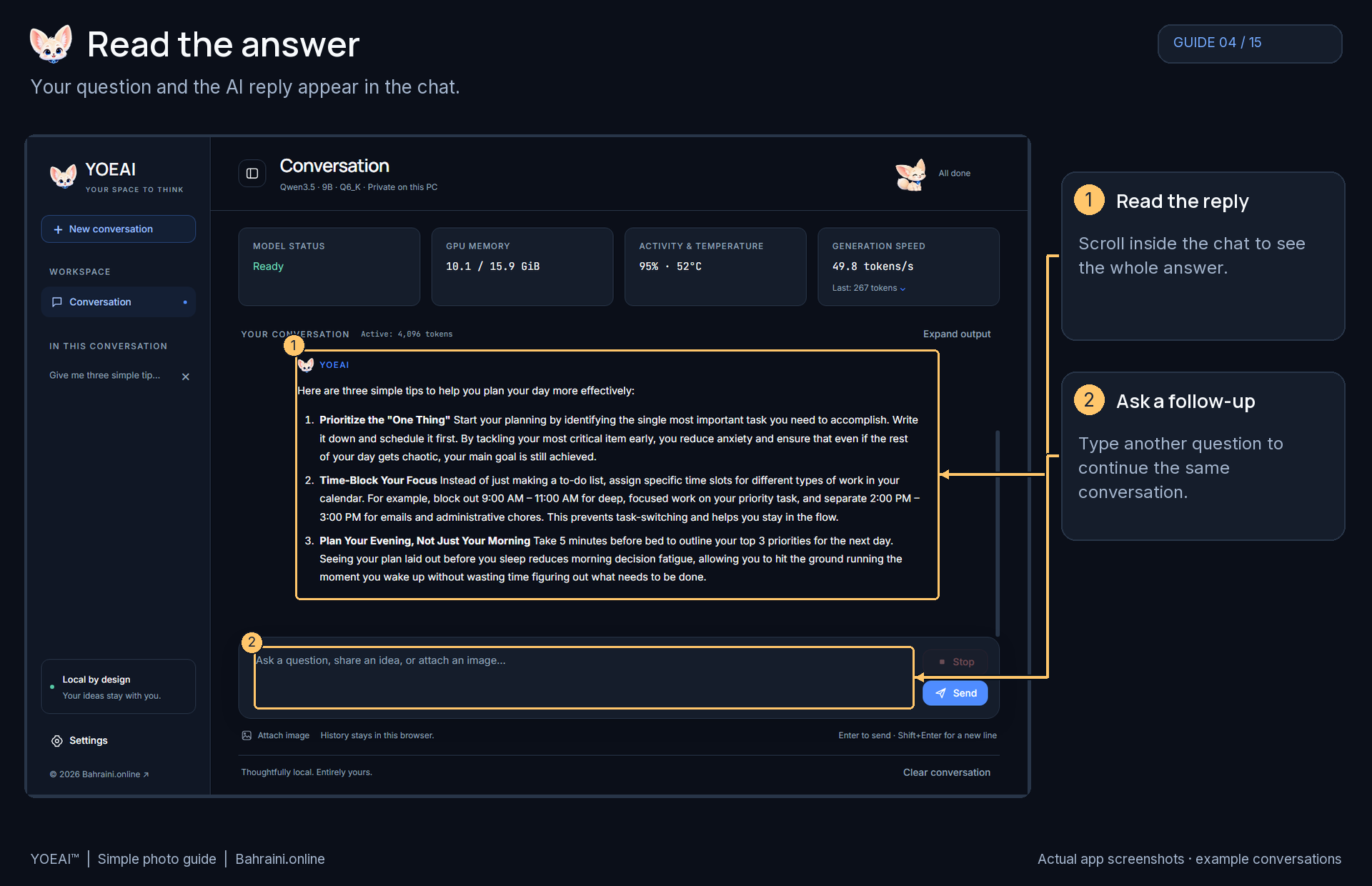
04 Read the answer

Save photo
Read the answer — actual YOEAI™ screenshot with numbered arrows and simple instructions

Tap or click the photo to read it at full size.
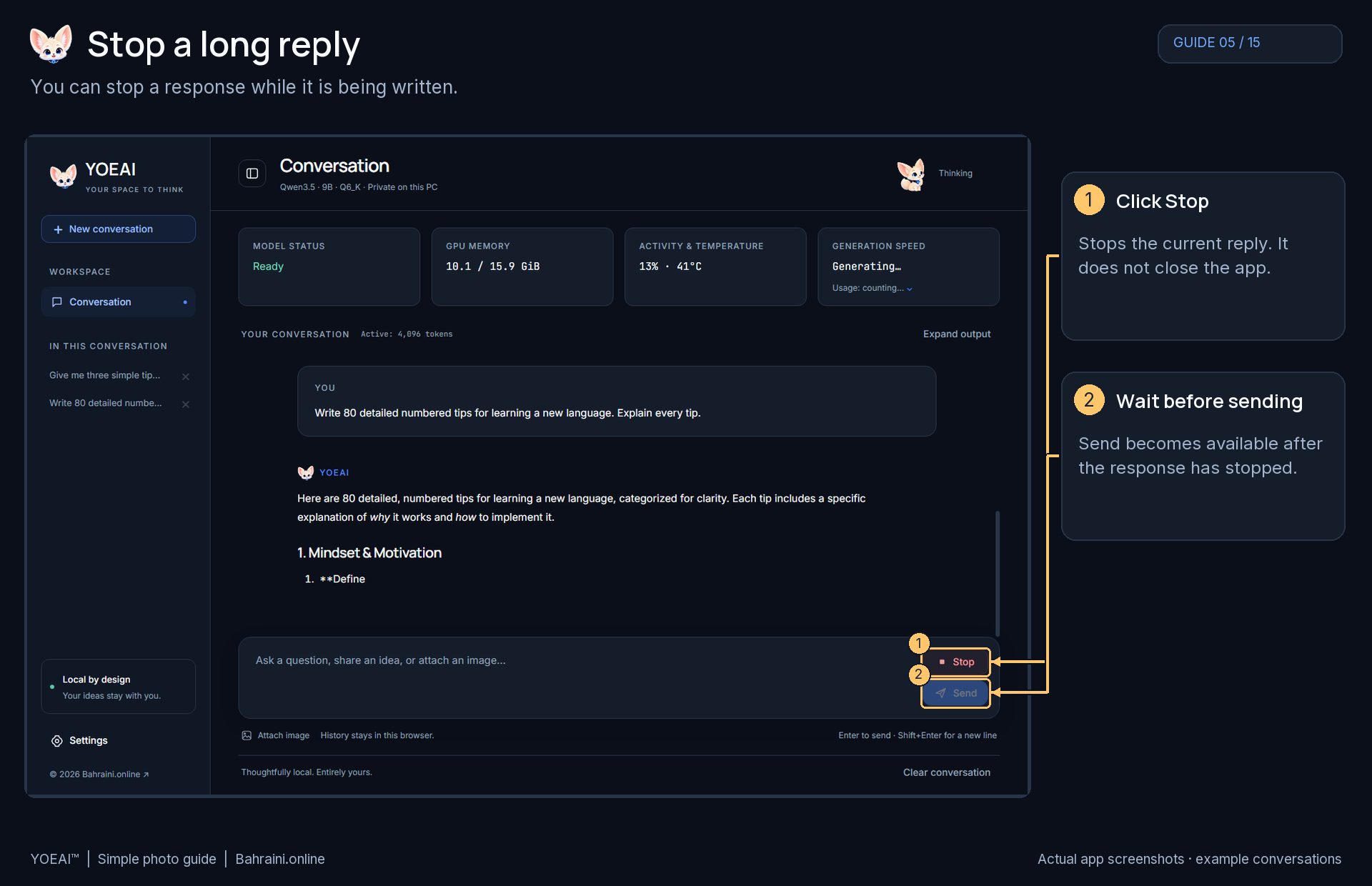
05 Stop a long reply

Save photo
Stop a long reply — actual YOEAI™ screenshot with numbered arrows and simple instructions

Tap or click the photo to read it at full size.
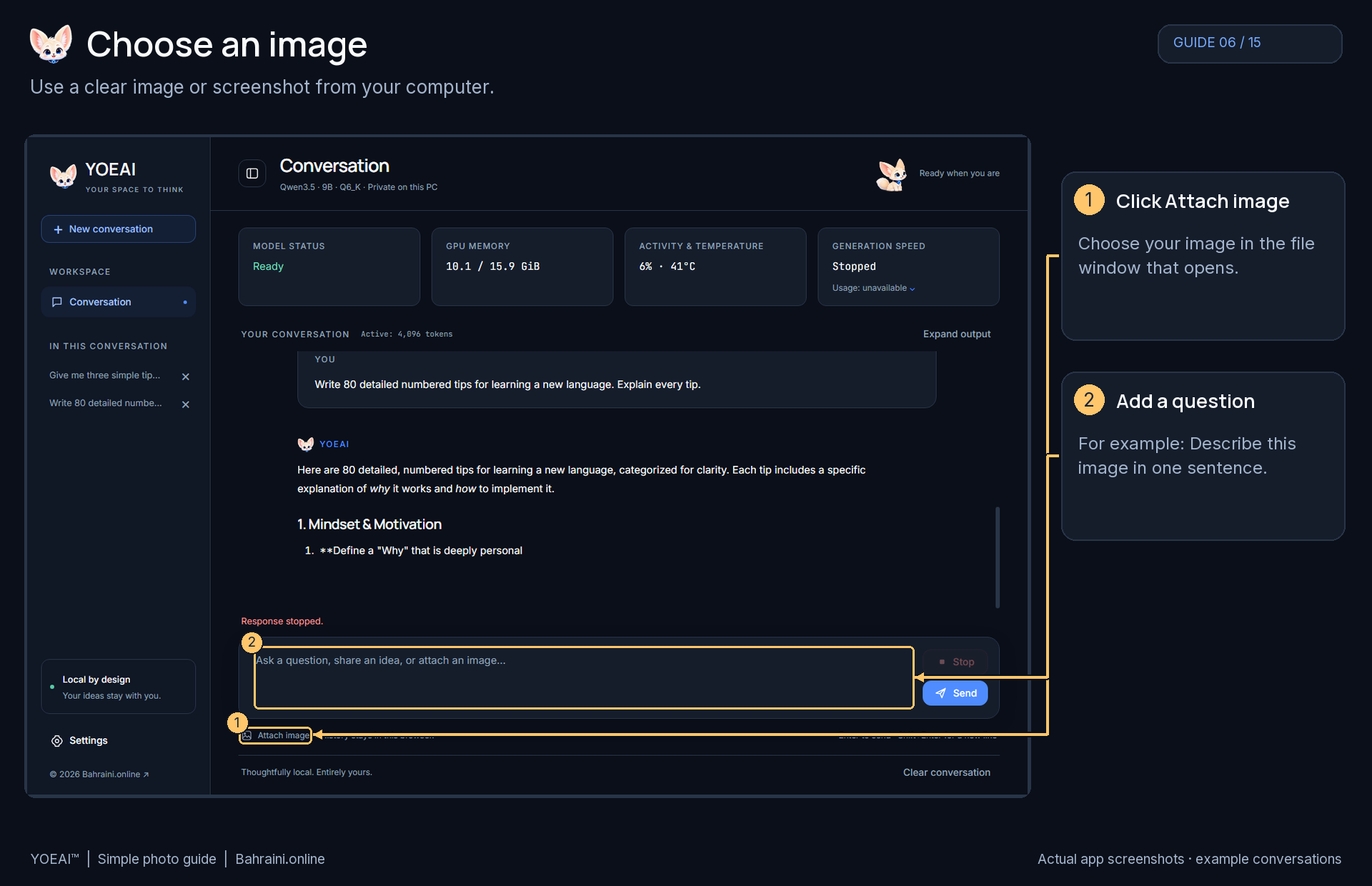
06 Choose an image

Save photo
Choose an image — actual YOEAI™ screenshot with numbered arrows and simple instructions

Tap or click the photo to read it at full size.
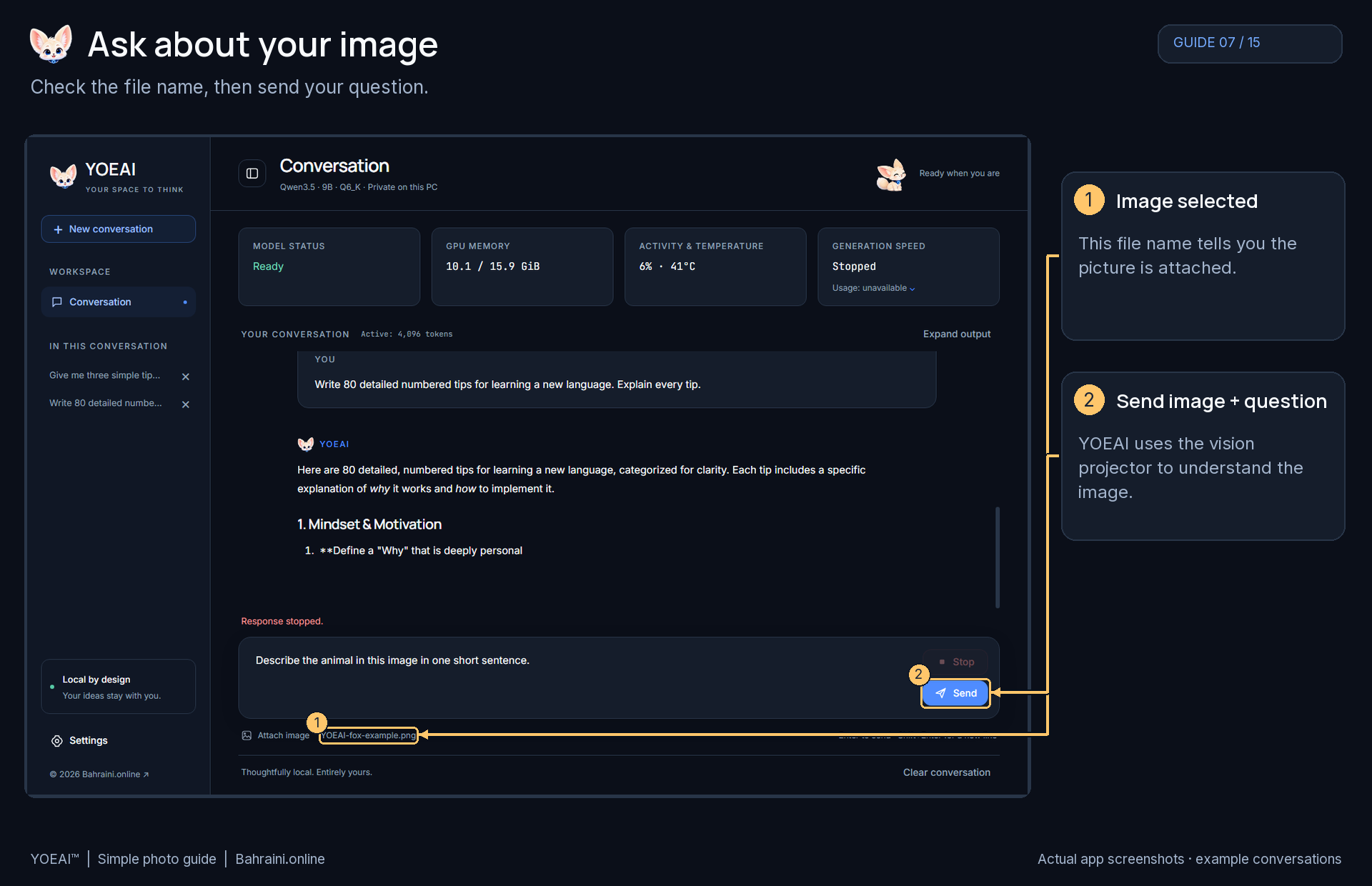
07 Ask about your image

Save photo
Ask about your image — actual YOEAI™ screenshot with numbered arrows and simple instructions

Tap or click the photo to read it at full size.
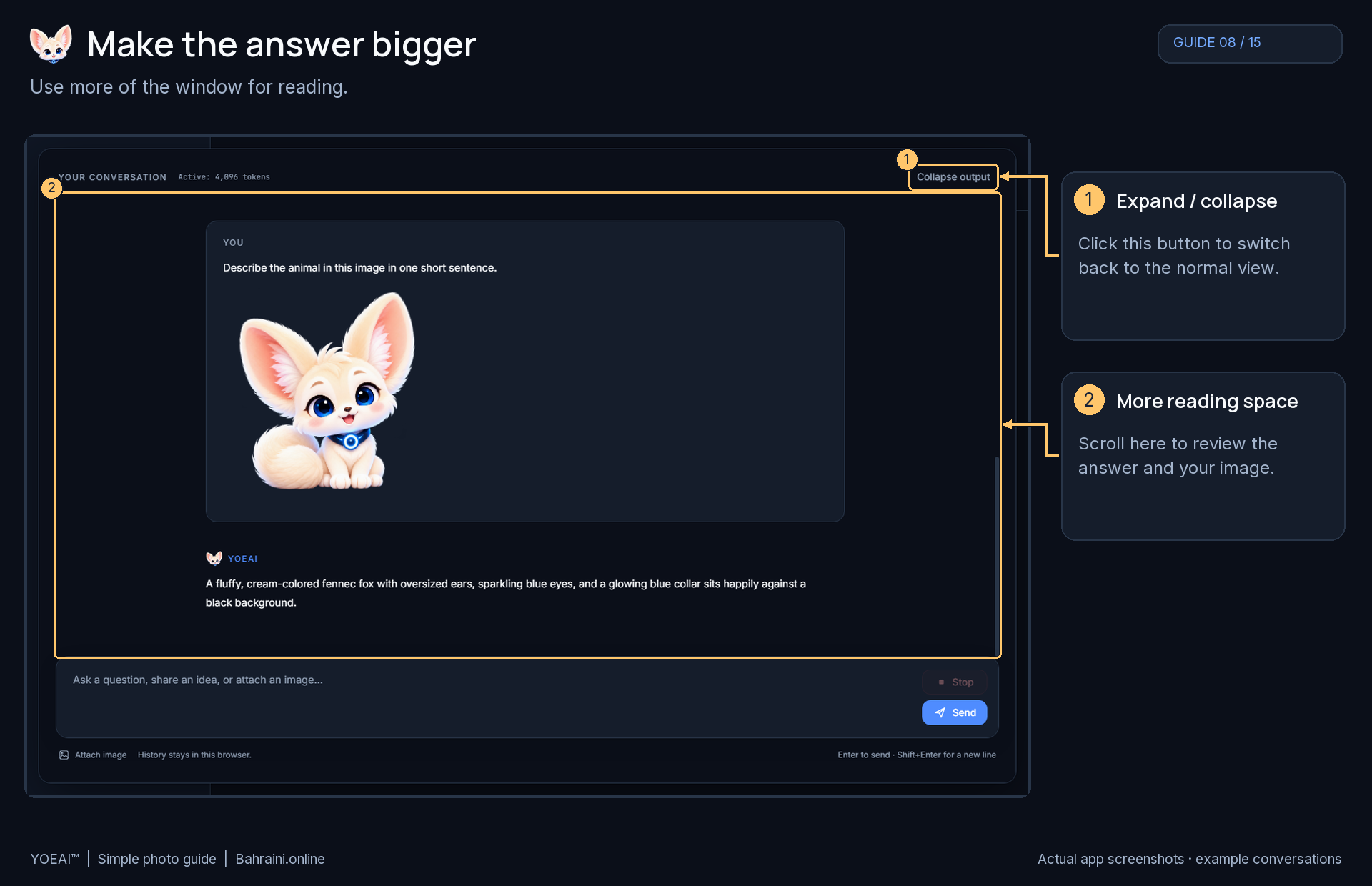
08 Make the answer bigger

Save photo
Make the answer bigger — actual YOEAI™ screenshot with numbered arrows and simple instructions

Tap or click the photo to read it at full size.
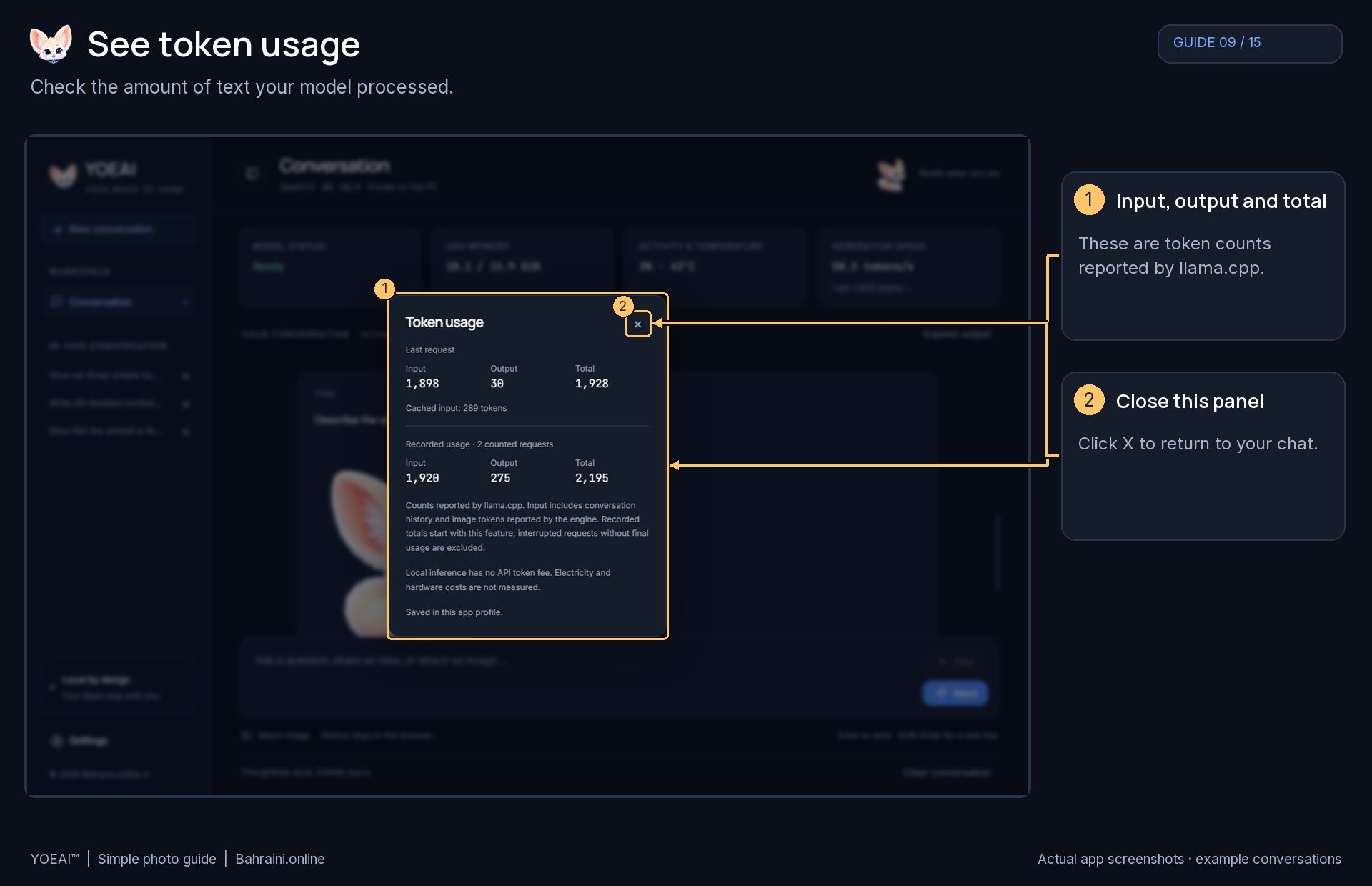
09 See token usage

Save photo
See token usage — actual YOEAI™ screenshot with numbered arrows and simple instructions

Tap or click the photo to read it at full size.
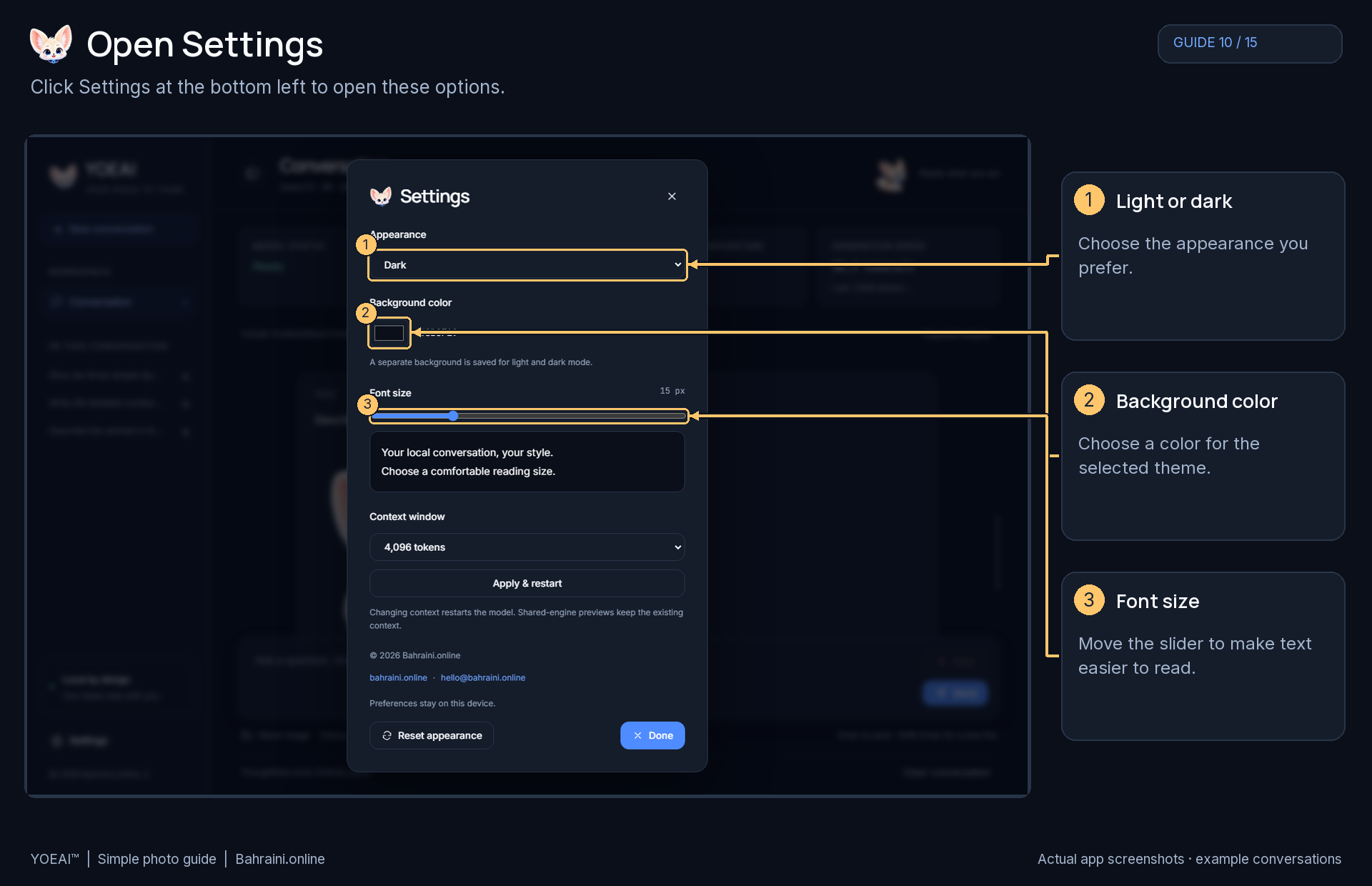
10 Open Settings

Save photo
Open Settings — actual YOEAI™ screenshot with numbered arrows and simple instructions

Tap or click the photo to read it at full size.
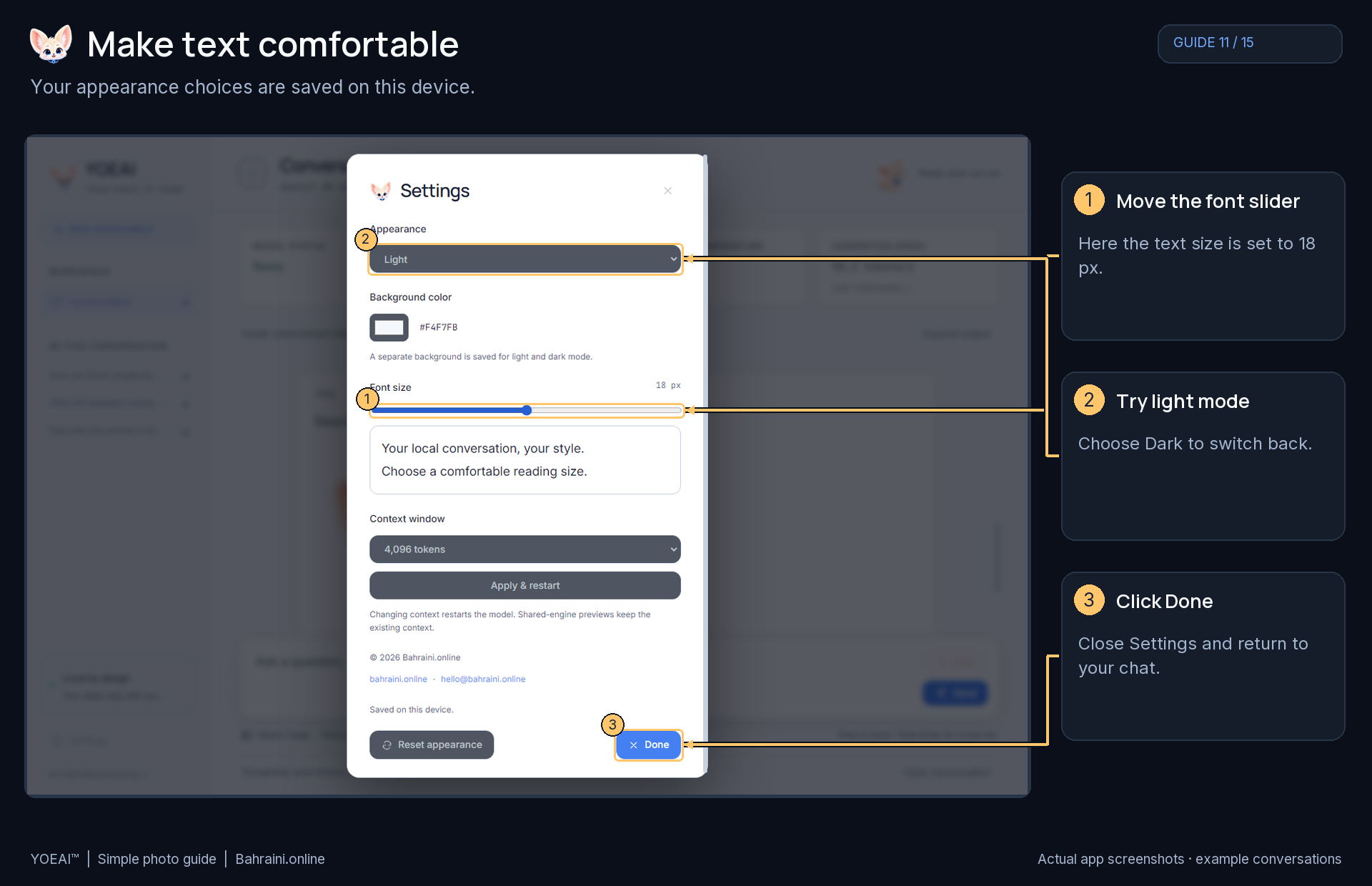
11 Make text comfortable

Save photo
Make text comfortable — actual YOEAI™ screenshot with numbered arrows and simple instructions

Tap or click the photo to read it at full size.
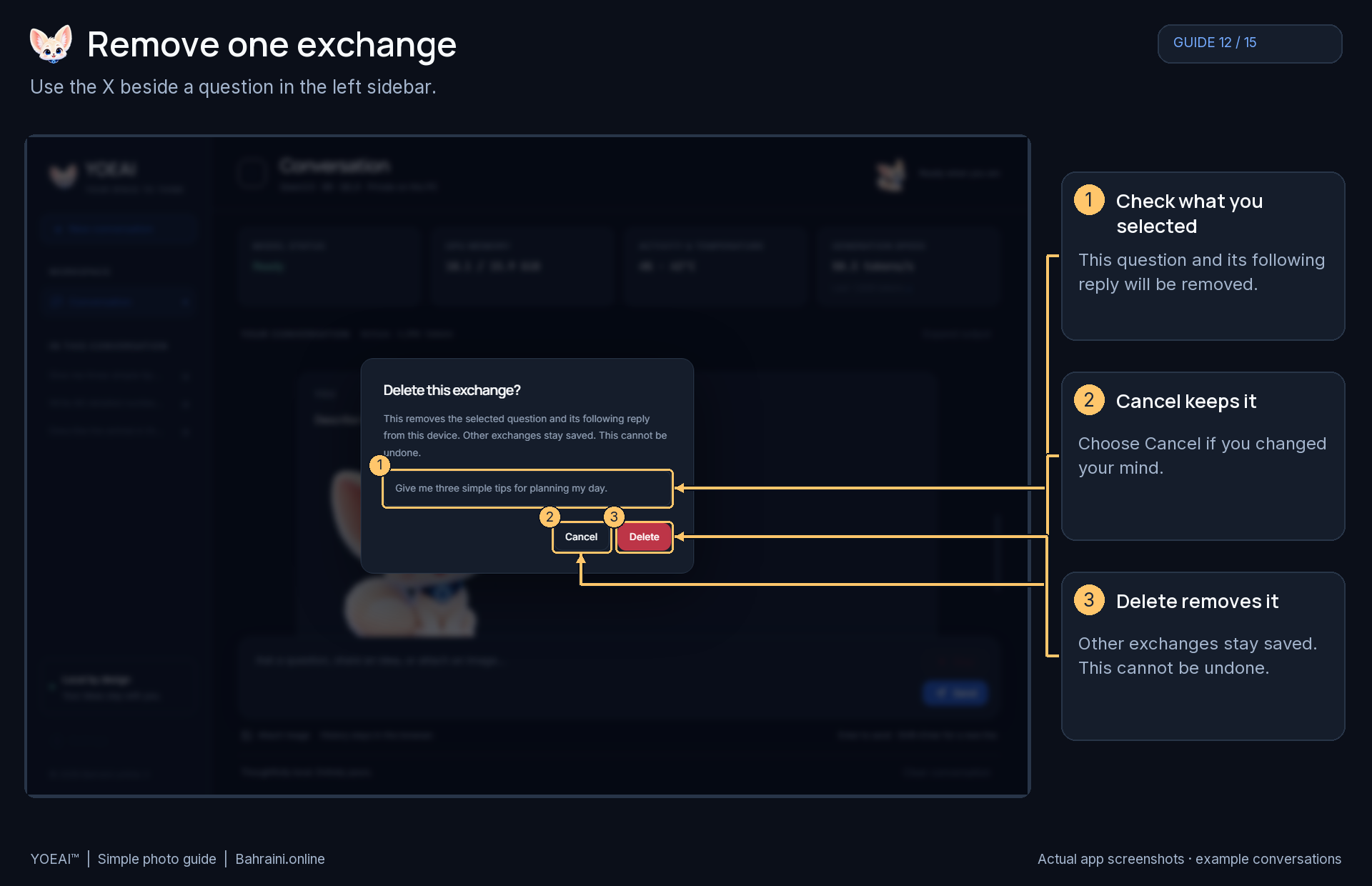
12 Remove one exchange

Save photo
Remove one exchange — actual YOEAI™ screenshot with numbered arrows and simple instructions

Tap or click the photo to read it at full size.
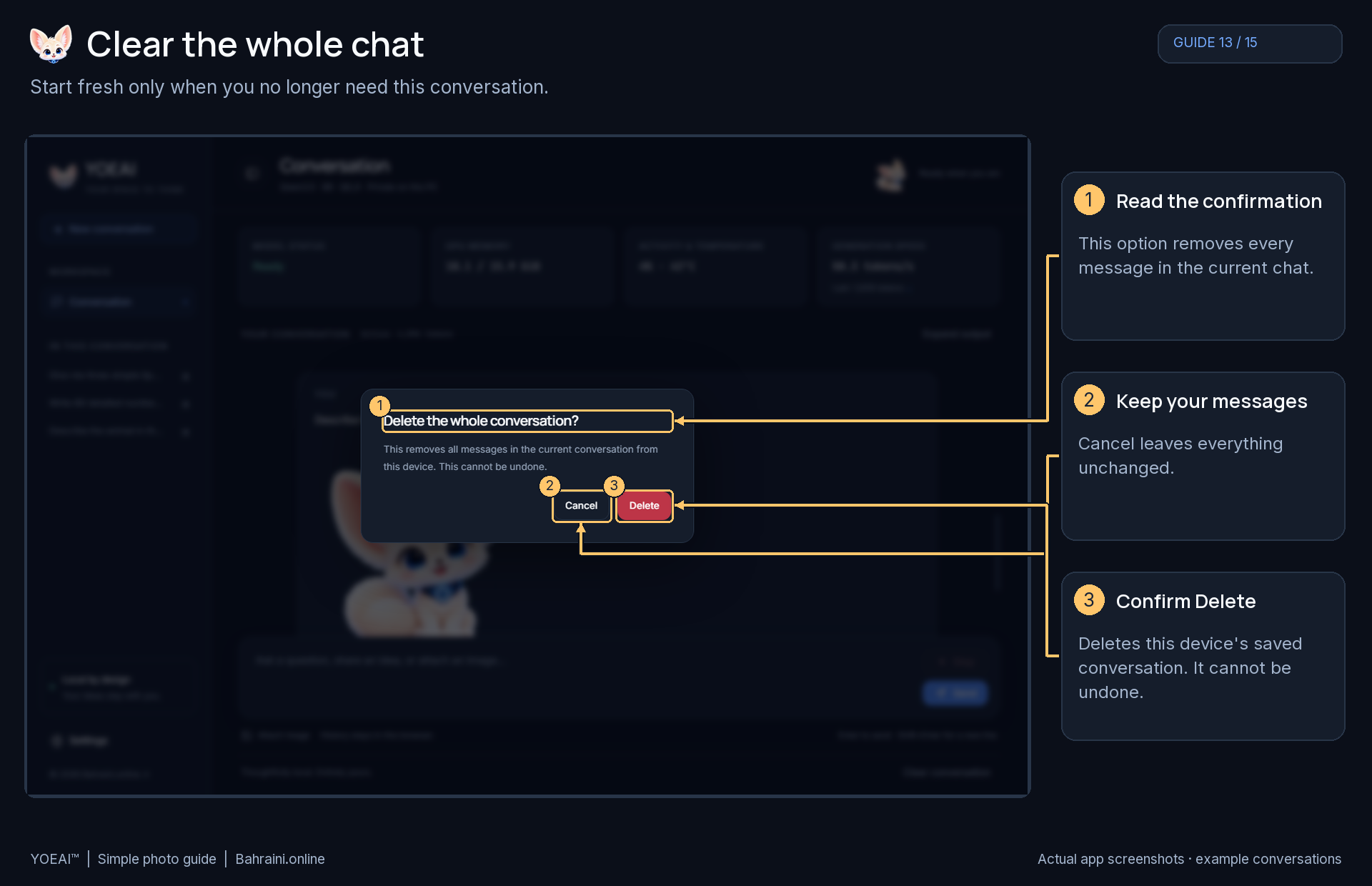
13 Clear the whole chat

Save photo
Clear the whole chat — actual YOEAI™ screenshot with numbered arrows and simple instructions

Tap or click the photo to read it at full size.
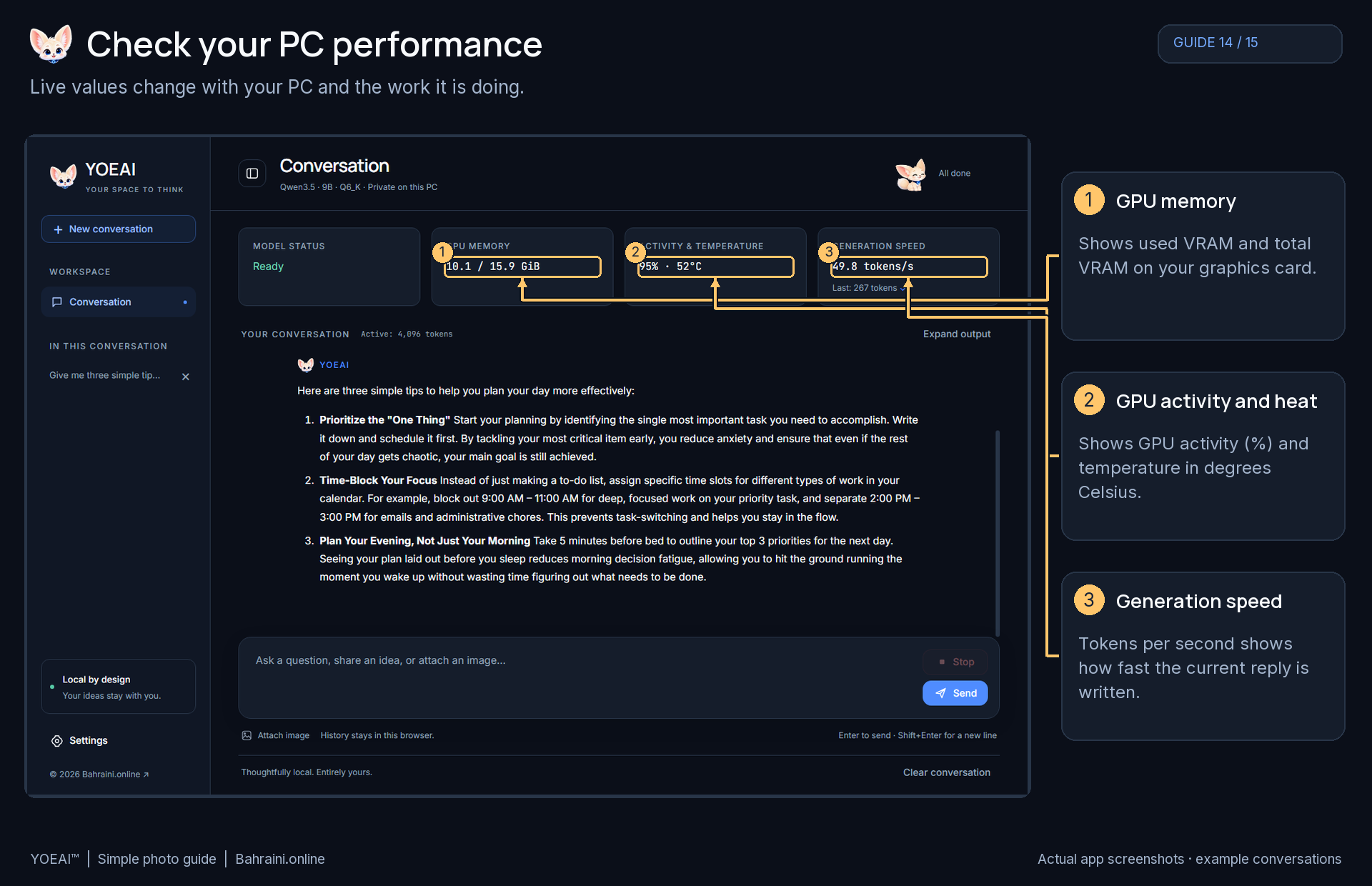
14 Check your PC performance

Save photo
Check your PC performance — actual YOEAI™ screenshot with numbered arrows and simple instructions

Tap or click the photo to read it at full size.
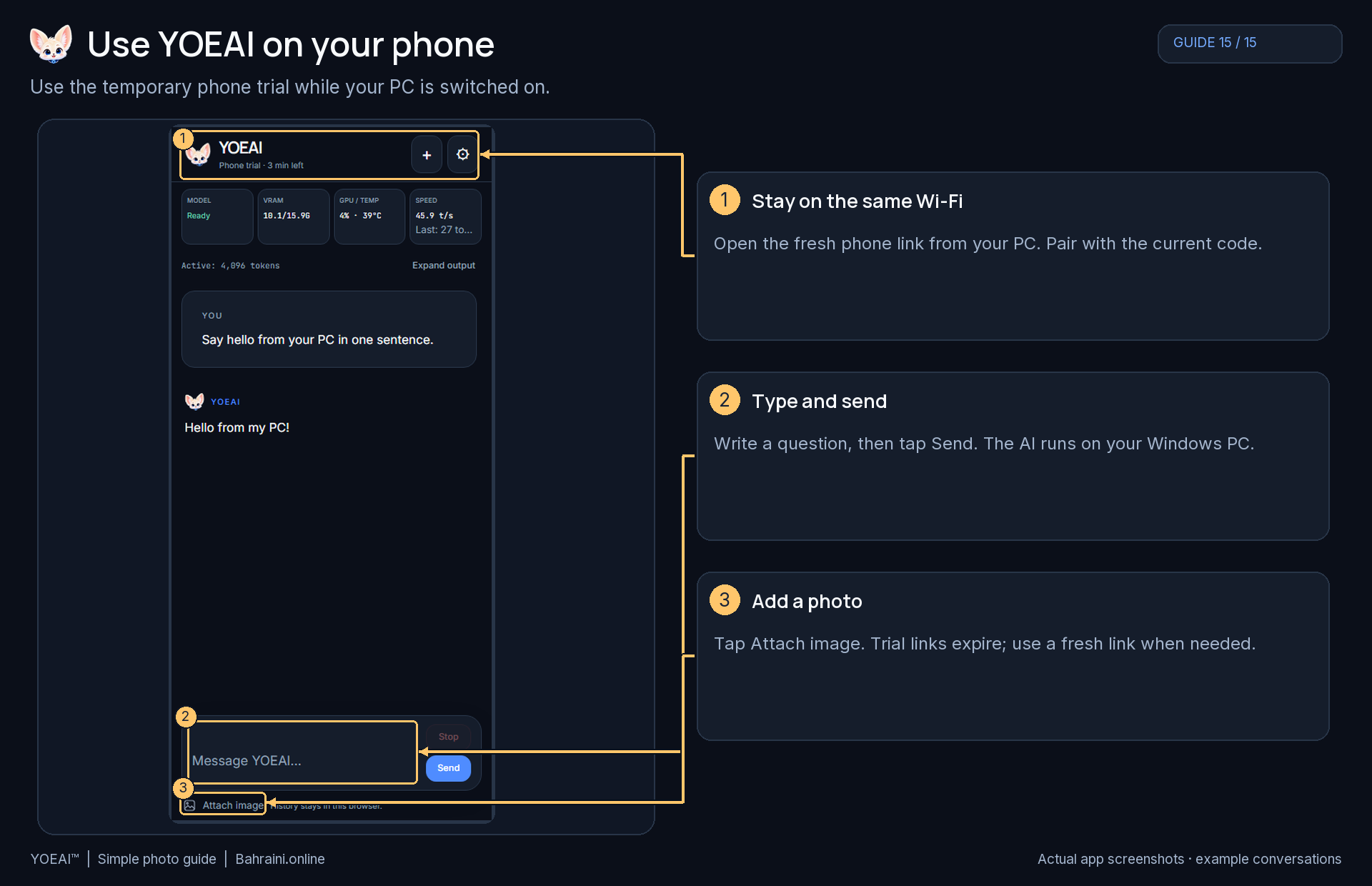
15 Use YOEAI™ on your phone

Save photo
Use YOEAI™ on your phone — actual YOEAI™ screenshot with numbered arrows and simple instructions

Tap or click the photo to read it at full size.